
iOS 26.2 Update: Fresh Features from Apple
Apple has launched the latest iPhone update, iOS 26.2. This update introduces exciting customisation opportunities, enhancements, and improvements to the overall user experience. This marks the second significant update under the iOS 26 framework, following various developer and public beta releases. The iOS 26.2 update showcases features such as offline lyrics functionality for Apple Music, AirDrop Code for effortless file sharing, robust security alerts, and much more.
iOS 26.2 Update: What’s New
The iOS 26.2 update adds an important security enhancement to AirDrop. Now, users must input an AirDrop code for every file they share with an unfamiliar contact. This code will be generated on the receiving device, and it must be entered on the sender’s device for a smooth file transfer. The code remains valid for up to 30 days.
In addition, Apple Music now supports offline lyrics, enabling users to view lyrics even without Wi-Fi or cellular data connectivity. The Favourite Songs playlist has also been reorganised, now available as Top Picks on the home tab.
Within the Settings app’s notification section, Apple has introduced a new Enhanced Safety Alerts feature. This will notify iPhone users of potential immediate threats such as earthquakes, floods, natural disasters, and other emergencies. Currently, this service is limited to the United States.
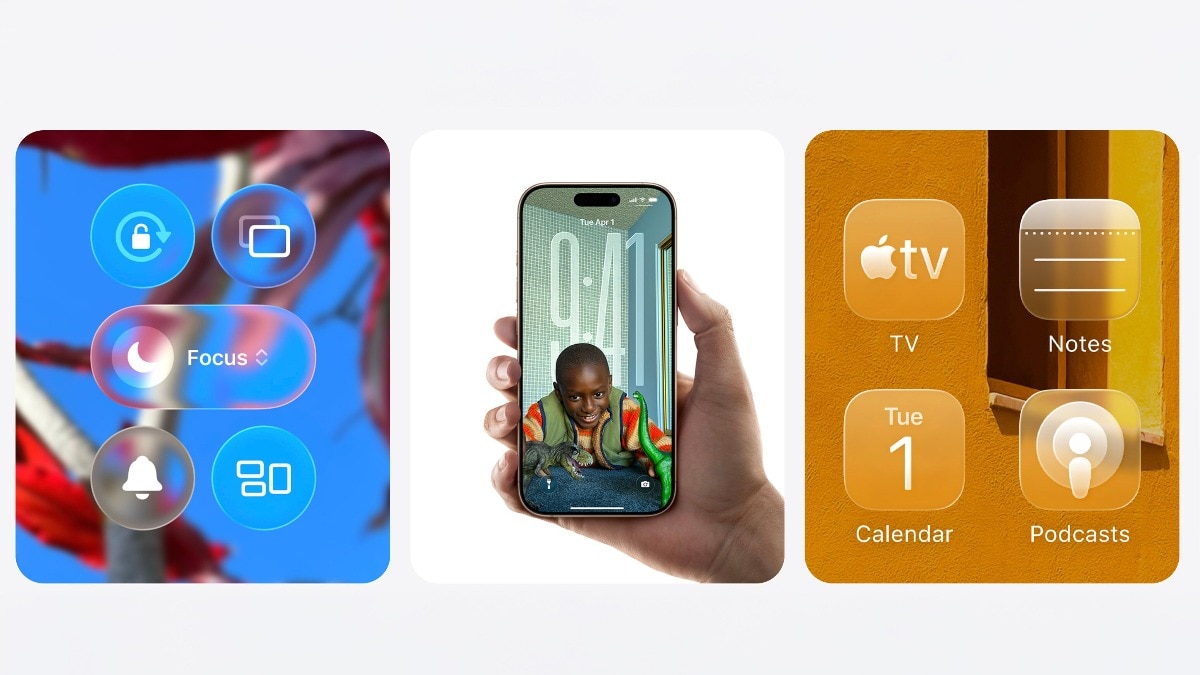
Additionally, iPhone users can now set alarms for Reminders, helping them manage urgent tasks effectively. The new functionality includes a snooze option and Live Activity support. Apple has also made enhancements to allow users to adjust the opacity of the Liquid Glass UI on the lock screen. These are some of the key updates and features added in iOS 26.2, with Apple providing an extensive list of other enhancements in its release notes.
How to Install the iOS 26.2 Update
Step-by-Step Installation Process
Step 1: Launch the Settings app on the iPhone.
Step 2: Navigate to General and select Software Update.
Step 3: The device will automatically check for a new update.
Step 4: Tap on Download and Install to begin the installation process.
Step 5: After the download completes, the iPhone will restart and install the update automatically.